Labels

Sunday, 8 December 2013

shortcuts for Windows 8

In these key combinations, hold down the Windows key (normally located between Alt and Ctrl) and another key, as described on this list.

Press the Windows key to enter the tiled Start screen.

The Windows key + M minimizes everything that's showing on the desktop.

The Windows key + E opens Explorer for quick access to folders.

On the Start screen, press the Windows key + D to instantly get to the desktop.

The Windows key + Tab opens a list of currently running programs.

The Windows key + Print Screen takes a screenshot and saves it in a Screenshots folder nested in your Pictures folder.

To take a screenshot on a Windows 8 tablet, simultaneously press the Windows button and the volume-down button on the tablet chassis.

The Windows key + Q opens a global search menu. Type what you're looking for and where you would like to look.

The Windows key + W opens a search in your system settings to quickly locate and change system properties.

The Windows key + F opens a file and folder search.

The Windows key + Pause opens the system properties page to show you a quick rundown of your specs.

The Windows key + "," (that's the comma sign!) makes all current windows transparent, giving you a peek at the desktop as long as you hold down the Windows key.

The Windows key + "." (the period) snaps a window to the right or left side (toggling each time you press ".").

The Windows key + R prompts the Run command—useful for quickly launching apps and other routines with a command prompt.

The Windows key + X opens the Quick Access Menu, exposing system functionality such as the Command Prompt, Disk Management, File Explorer, Run, and more. Alternatively, you can right-click on the bottom right corner of the screen to spawn the Quick Access Menu.

The Windows key + I opens the settings menu, giving you quick access to the Control Panel, Personalization, and your Power button, among other features.

The Windows key + O locks orientation on devices with an accelerometer.

Saturday, 7 December 2013

Speed up Internet using Command Prompt

Today for all the computer user's major problem is slow internet access. We are using many softwares and tricks to speed up our internet connection. But how many of these softwares and tricks makes us satisfy?

So today I'll give you such a nice trick to speed up your internet connection using command prompt. Already i have given you a post about Speedup Internet without any Software. Don't miss to read it.

Speed up Internet using Command Prompt
Note :
Check your Internet speed test on scanmyspeed.com before start this trick. Then, again you can check the new internet speed and feel the difference of this awesome trick.


How to Speedup Internet connection using Command Prompt

Click on Start
Type cmd in Search program and files box (Run cmd as Administrator)
Now command prompt will appear
In command prompt go to root directly "C:\" type cd C:\ )
Now type netsh interface tcp set global autotuning=disabled


Speed up Internet using Command Prompt

Press Enter. That's all, you have Done !!!

Now check the internet speed on www.scanmyspeed.com and feel the difference. If this article is useful, Put your comments and share with it your friends.

Hide any Local Drive using Command prompt and their is no hard drive recovery software is used......

Today Computer World tutorial is about how to hide a local drive without any 3rd party software. There are lots of free and payable software's available to hide local drive, but I'm not gonna talk about hide a local drive using a software. In this tutorial I'll show you an easiest way to hide local drive without using software. This will save your both money and time.

There are 3 methods available to hide a local drive without using any software

1. Hide a drive through gpedit
2. Hide a drive through regedit
3. Hide a drive using command prompt


Today we are covering command prompt way of doing it. So lets see how to do.


How to Hide any Local Drive using Command prompt

How to Hide a Local Drive using command prompt?

1. Click on Start - Run

2. In Run box type cmd and hit Enter. Now Command Prompt window will appear.

3. In command prompt, type diskpart and hit Enter.

4. Then type list volume and hit Enter.

Now it will display the list of all your computer drives details.


5. Then type the Drive Letter which you want to hide.
If you want to hide volume E, type select volume E and hit Enter.

Now follow mentioned massage will appear to you.
Volume 4 is the selected volume


How to Hide any Local Drive using Command prompt


6. After that, type remove letter E and hit an Enter. 

That's all, you have done. Now restart your computer once. When you start your PC again, you want be able to see the
 particular drive in My Computer.


How to get back Hidden Drive again in My Computer.

Do the procedure which i have mentioned in step 1,2,3,4 and 5 again.

Click Start --> Run --> cmd -->

Then type diskpart - list volume - select volume E

After that type assign letter E and hit Enter.

That's all !! You have got back the hidden local drive. Once again restart your PC, now you will be able to see hidden local drive in My Computer.

Note: Your PC doesn't lost any data by doing this trick 

Friday, 6 December 2013

maxthon browser

Maxthon Internet Browser software is a powerful tabbed browser with a highly customizable interface. It is based on the Internet Explorer browser engine (your most likely current web browser) which means that what works in the IE browser will work the same in Maxthon tabbed browser but with many additional efficient features.


 click here to download maxthon browser

Windows 8 HD wallpapers

the largest pack of Windows 8 wallpapers from Microsoft's official site. Microsoft site offers you awesome desktop backgrounds for your computers. You can download huge number of high quality Windows 8 desktop background from Microsoft site.

Put pendrive as password to PC

It is very helpful and most secured way 2 protect your PC.
We can lock Laptops with Finger print reader, Eye Scanner, Face Recognition etc.. but what about the personal computers?


Lock your PC with Pen-Drive

You can lock your personal computer with USB by using Predator. If you lock your PC with Predator, computer will work only when the USB in plugged in.
If you removed USB from computer , Mouse and Key board will get disabled automatically and screen will get dark. To unlock the computer, you should insert the USB again.


Now install the software.
Predator will launch automatically after the installation.
Now insert USB to the computer
you will get a message to set new password.
click on OK and set your New password
Then Choose the correct Drive letter from "USB Key Drive"


Lock your PC with Pen-Drive

After this click on Create Key
Then Click on OK

Note : This process will not format your USB

Password protection to USB drive without any software

I'll show you a simple trick to lock your USB drive without using any 3rd party software.
Most of the people doesn't like other people checking their personal files and folder on USB, including me. This insecure situation creates a huge space to theft our personal data by someone. If you use password protection to your USB, you can reduce the data theft.

Lots of USB password protect software available in present market, but you want to pay money to use it for lifetime. If you're using Windows you don't need any software.


Password Protection to USB Drive without using Software
So let's see how to set a password protect on your USB without using any software.

Insert your USB drive to computer
Click on Start
In "Search programs and files" box, type Bitlocker Drive Encryption
Now launch that application.


Password Protection to USB Drive without using Software

Then look for your USB drive and click on Turn on Bitlocker


Password Protection to USB Drive without using Software

Windows will ask you to set a password. 
Now set a strong password.
Click on Next

Password Protection to USB Drive without using Software

If you want save the password in a safe place.
And click on Next


Password Protection to USB Drive without using Software

Now click on Star Encrypting


Password Protection to USB Drive without using Software

That's all !!! :)
From right now if someone tries to access your USB, Windows will ask him/her to enter the current password.

Recover Deleted Files without Using Software in PC

In this post I'm gonna discuss an easiest Data Recovery Method.
Sometimes we might have delete some important files accidentally and we need them back.
Today I'll show you a trick to recover your deleted files without using any 3rd party software. I'm not talking about restoring files from recycle bin.
This simple trick mostly works on Vista versions and all the Windows 7 versions.
How to Recover Deleted Files without Using Software


So let's see how to recover deleted file without using any software 

For example lets assume that you have permanently deleted "My Sweet Heart.JPG" from the folder named "My LIFE" ;) , and now you want to recover "My Sweet Heart.JPG"back.
Do this simple trick to recover your Sweet Heart.JPG
Right Click on the particular folder
Select "Restore previous versions"

How to Recover Deleted Files without Using Software


That's all, now you will see a option to recover the particular file.

How to Recover Deleted Files without Using Software


If you don't see "Restore previous Versions" by Right Clicking, Go to
Control Panel -->
System and Secutiry -->
System -->
Click on System Protection (in left sidebar) -->
Select the particular drive and Click Configure -->
Then select "Restore system setting and previous versions of files" -->
Now Click on OK

Note : 
Previous versions come from restore points or from windows backup.
This trick will not work at all the time.

Watch Blocked videos on YouTube

You may have come across many banned and blocked videos while working on YouTube. Now I’m gonna show you a simple trick to watch those videos.
Watch Blocked videos on YouTube
Try this method

Go to the video you want to view.

The site will display that the video cannot be played in your country.

See in the address bar and you need to manipulate it a little bit.

Your URL will be like http://www.youtube.com/watch?v=QJO3ROT-A4E&ob=av2e

You just have to remove “watch?v=” and replace it with “v/

Now your URL will look like this http://www.youtube.com/v/QJO3ROT-A4E&ob=av2e

Now run this URL and you will have access to the blocked video.

Note:This is a simple trick and it may not work always. Try your best!!!

Thursday, 5 December 2013

Previous papers for EEE JNTUK students

click this link to download previous papers for EEE students

click to download

How to Format a pendrive using command prompt

Some times pendrive will not be format due to format due to virus

Start->Run->cmd

after that type

Format/x J:

use your pendrive location Instead of J

ex: G,H,I depending upon your system drives

thats it ... your pendrive will be formated without any problem :)

Wednesday, 4 December 2013

Automatically Forward All Mails From One Gmail Account to Another Gmail

This is a very difficult task for all bloggers to login to one gmail account and then log out and login to another account. 
This can waste your precious time, because every gmail account is associated  with your important activity and you have to check all accounts for new mails.  
But there is no need to worry about this, because there is a super duper solution for this problem
You can merge all gmail accounts with one gmail account:
It means that if you are using 5 gmail accounts and you want to receive all emails in one gmail account. Then you can forward all emails from gmail 1, gmail 2, gmail 3 and gmail 4 to your gmail 5 account. Then there is need to login to all accounts, because you can receive all mails in your gmal 5 account. This is very useful for those who are using multiple gmail accounts.

How to Automatically Forward Mails from One Gmail to Another Gmail Account:

1. Login to your Primary Gmail account (Primary means where you want to receive mails from other gmail accounts.)
2. Click on “Setting” button located at the top right side of your account.
3. Select  “Accounts and Import” button and then click on “Send mail from another address”.

4. Now you will see another window. Where you have to enter the email address of your 2nd gmail account.
Enter your 2nd emails address in the “Email Address” box and click on “Next Step” button.

5. After the 4th step, you will see another window, where you have to click on “Send Verification” button. Just click on the button to verify that the email address you entered is correct. You can see in below image.

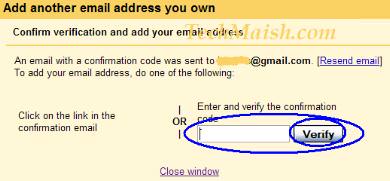
6. Now you will see another box, where you have to enter the Verification code, sent to your 2nd gmail address. Login to your 2nd gmail and copy the code you received from gmail. Paste the code in box and click on “Verify” button. See the below image.

7. Now a new email address has been added and confirmed to your Primary gmail account. Similarly add all your other email address using the same method. Verifyand confirm all the email address and now follow the below steps to forward mails from all the added email address.

Forward Mails from All Gmail Address to the Primary Address

(These steps are for Primary email address)
8. Click on the “Labels” button located near with “Accounts and Import” button under Setting. You will see a box. Write the name of your new label and click on ‘Create” button. (Note:- Name the label as “2nd Gmail” OR whatever you want, but remember that all the emails you will receive from your 2nd gmail address, will goes in this Label).
9. After creating a “Label” the next step is to create a new Filter. Click on “Filter” button located near the “Labels” button.
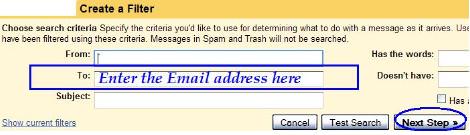
Under “Filters” setting click on the button “Create a new Filter” and you will see another window.
Enter your email address in the T0: box and click on “Next Step” (See the screen shot below)

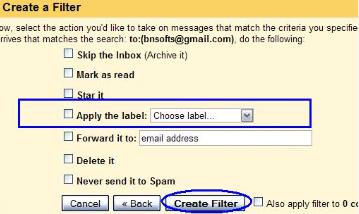
10. Now you will see another box, where you have to select the “Label” you create in step 8.Give a tick to “Apply the Label” and then choose the label you created in step 8. Now click on “Create Filter”

Now all the mails from your “2nd email address” will goes to the label you choose. But you have to follow the below steps to forward all mails from ’2nd email address” to your Primary email address.
11. This is the final and last step.If you are already login to your “2nd email address” then go to the step 12, if not then Login to your “2nd email address”
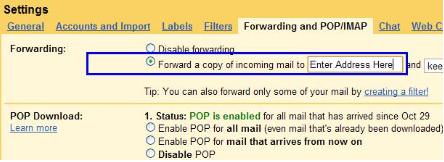
12. Click on “Setting” and then select “Forwarding and POP/IMAP”. Now you will see another box. Just select “Forward a copy of incoming mail to” and type your primary email address. Now click on “Save Changes” (You can see the belowscreen shot for more help)


Now all mails from “2nd email address” will goes to your primary email address, and you will see that all mails will goes to the “Label” you created in step 8. Similarly you can add more emails and forward them to your primary email address. The method is same for all emails, but the only thing you have to do, is to create different Labels for different email address

Tuesday, 3 December 2013

Windows Keyboard Shortcuts

Mastering the keyboard will not only increase your navigation speed but it can also help with wrist fatigue. Here are some lesser known Windows shortcuts to help you become a keyboard ninja.
Global Windows Shortcuts
Win+1, 2, 3, 4, etc. will launch each program in your taskbar. It is helpful then to keep your most used programs at the beginning of your task bar so you can open them one right after another. This also works in Windows Vista for the quick launch icons.
Win+Alt+1, 2, 3, etc. will open the jump list for each program in the taskbar. You can then use your arrows to select which jump list option you want to open.


Win+T will cycle through taskbar programs. This is similar to just hovering over the item with your mouse but you can launch the program with Space or Enter.
Win+Home minimizes all programs except current the window. This is similar to the Aero shake and can be disabled with the same registry key.
Win+B selects the system tray which isn’t always useful but can come in very handy if your mouse stops working.
Win+Up/Down maximizes and restores down the current window so long as that window has the option to be maximized. It is exactly the same as clicking on the middle button on your windows.
Alt+Esc is like Alt+Tab but switches windows in the order they were opened and does not have the fancy window preview overlay.
Win+Pause/Break will open your system properties window. This can be helpful if you need to see the name of a computer or simple system statistics.
Ctrl+Esc can be used to open the start menu but will not work as a Windows key replacement for other shortcuts.
Ctrl+Shift+Esc will open the task manager without needing to hit Ctrl+Alt+Del first.
Alt+Space will open the window system menu which can be used to maximize (x), minimize (n), close (c), or move (m) the window which can be especially helpful if your window is somehow off-screen. This shortcut can also be helpful with windows that don’t close with the Alt+F4 shortcut such as the command window.
Windows Explorer Shortcuts
Here are handy shortcuts built into Windows Explorer which may have similar features in other programs too.
Alt+Up will navigate up one folder level since the up arrow on the menu bar was removed in Windows Vista. Alternatively, you can also make Backspace go up one folder level with a handy AutoHotKey script.
Shift+F10 opens the contextual or “right click” menu for a file/folder. This can be very handy for speed especially if you know which option you want to select. Look for an underlined letter in each option to know which letter you can press for faster access.
Shift+Del deletes a file without sending it to the recycle bin because who wants to empty their recycle bin anyway?
Ctrl+Shift+N creates a new folder in your current directory.
Alt+Enter opens the file properties so you can view file size, sharing settings, and creation date.
F2 renames a file or folder.
F3 will open explorer and select the search bar. If you already have an explorer window open it will highlight the search bar. In some programs it will also open the search dialog to search within that program.

F6 cycles objects in the current window. In explorer this will cycle between the location bar, options bar, left pane, and right pane. It also works with varying success in other programs.

F10 toggles the file menu in explorer.