
This is a very difficult task for all bloggers to login to
one gmail account and then log out and login
to another account.
This can waste your precious time, because every gmail
account is associated with your important
activity and you have to check all accounts
for new mails.
But there is no need to worry about this, because there is
a super duper solution for this problem.
You can merge all
gmail accounts with one gmail account:
It means that if you are using 5 gmail
accounts and you want to receive all emails in one gmail
account. Then you can forward all
emails from gmail 1, gmail 2, gmail 3 and gmail 4 to your gmail 5 account. Then
there is need to login to all accounts, because you can receive all mails in
your gmal 5 account. This is very useful for those who are using multiple gmail
accounts.
How to
Automatically Forward Mails from One Gmail to Another Gmail Account:
1. Login
to your Primary Gmail account (Primary means where you want to
receive mails from other gmail accounts.)
2. Click
on “Setting” button located at the top right side of your account.
3. Select
“Accounts and Import” button and then click on “Send mail from another
address”.

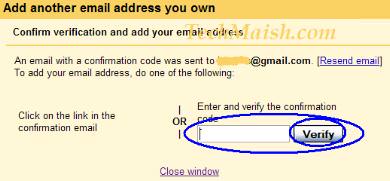
Enter your 2nd emails address in the “Email Address” box
and click on “Next Step” button.


Forward Mails from All Gmail Address to the Primary Address
(These steps are for Primary email address)
8. Click
on the “Labels” button located near with “Accounts and Import” button under
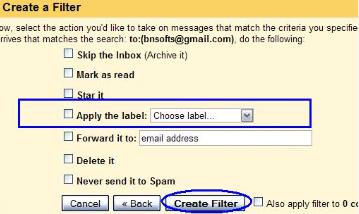
Setting. You will see a box. Write the name of your new label and click on
‘Create” button. (Note:- Name the label as “2nd Gmail” OR whatever you want,
but remember that all the emails you will receive from your 2nd gmail address,
will goes in this Label).
9. After
creating a “Label” the next step is to create a new Filter. Click on “Filter”
button located near the “Labels” button.
Under “Filters” setting click on the button “Create a new
Filter” and you will see another window.
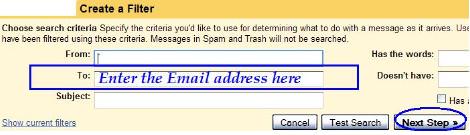
Enter your email address in the T0: box
and click on “Next Step” (See the screen shot below)


11. This is
the final and last step.If you are already login to your “2nd email address”
then go to the step 12, if not then Login to your “2nd email address”
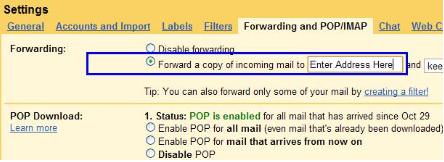
12. Click
on “Setting” and then select “Forwarding and POP/IMAP”. Now you will see
another box. Just select “Forward a copy of incoming mail to” and type your
primary email address. Now click on “Save Changes” (You can see the belowscreen
shot for more help)


No comments:
Post a Comment